
CoinManage Support
Answers to the most frequently asked CoinManage tech support questions.
If you have questions on using CoinManage please visit our CoinManage Videos Page which contains many videos showing how to use CoinManage.
If you have questions on using CoinManage please visit our CoinManage Videos Page which contains many videos showing how to use CoinManage.
I downloaded the CoinManage USA demo version. I then decided to purchase the CoinManage Deluxe. My Activation code will not work.
If you have purchased the 2024 Deluxe version, you must download and install
CoinManage Deluxe
to the same folders as the CoinManage USA Demo. The data you entered into the trial version will be retained.
I have purchased a new computer and would like step by step instructions for transferring my program and data to my new computer.
If you are transferring the same version of CoinManage to the new computer (or 2nd computer) watch this video:
I downloaded the 2023 update and when I try to install I get the following message
Reason: Trojan:W32CryptoRansomwareBehavior.B!DeepGuard
These errors are often caused by aggressive anti-virus programs.
Every anti-virus software should have a Settings section where you can add CoinManage to the anti-virus "safe list".
I receive a "Read-only" error when running the software.
See the reponse to the issue above. If a sub folder under MY DOCUMENTS is being set to read-only it may be the antivirus locking down the folder.
Add CoinManage to the anti-virus "Safe List"
I recently updated to coin manage 2024 from 2020. I did not uninstall 2020 before upgrading and now both of them show up in my database files. how can I correct? Thanks for your help
You can uninstall CoinManage 2020 from the Windows control panel. The problem is that doing this will remove the stock images used by CoinManage. So you will need to then install CoinManage 2023 again.
Do you have a Mac Version of CoinManage?
Yes we have a new macOS version. It is available at the Mac App Store.
- Last week I got a new computer so I am wondering if i can re-install CoinManage on the new computer or if i have to buy it again?
- I get a "Code in Use" error when trying to activate CoinManage on a new computer
- I get a "Code in Use" error when trying to activate CoinManage on a new computer
if you still have access to the older computer you can release the code by selecting:
TOOLS > LICENSING > DEACTIVATE LICENSE..
from the main menu. If not, you can Email Us the code and we can release it online so that you can use it on the new computer.
TOOLS > LICENSING > DEACTIVATE LICENSE..
from the main menu. If not, you can Email Us the code and we can release it online so that you can use it on the new computer.
I recently received the CoinManage 2024 program I ordered ... and after loading on my computer I tried to register it using the activation code you sent in email and in package with the thumb drive but keep getting an error message to "enter the correct code, please try again".
In most cases you should have received an email with your activation code. It will look something like
this:
 Try to copy and paste the activation code directly from the email receipt into the registration dialog. If you ordered the program on USB
email us at sales@libertystreet.com and we will reply with the code. You can then copy & paste it as shown in the video below.
Try to copy and paste the activation code directly from the email receipt into the registration dialog. If you ordered the program on USB
email us at sales@libertystreet.com and we will reply with the code. You can then copy & paste it as shown in the video below.
Try to copy and paste the activation code directly from the email receipt into the registration dialog. If you ordered the program on USB
email us at sales@libertystreet.com and we will reply with the code. You can then copy & paste it as shown in the video below.
When running CoinManage I get an "unrecognized database format c:\users\homer\documents\coinmanage\data\coindesc.mdb" error
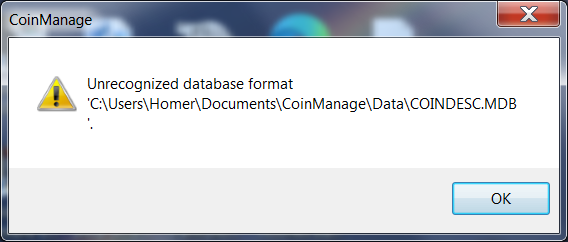
Do you have Microsoft Access installed on your computer? If so, you can simply open the COINDESC.MDB file in the folder showing in the error message.
Microsoft Access will automatically repair the file. If not, you can ZIP and email us your COINDESC.MDB file..we will repair it here. techsupport@libertystreet.com
I’m trying to install CoinManage on another computer. I downloaded the trial version, opened the file and I get a “decompression error”. I deleted the downloaded file, re-downloaded, and got the same message. Can you help?
We had another customer with that problem. Turns out Windows Defender was preventing the extraction. When he disabled Windows Defender during the install it went smoothly. If you don't have another antivirus we would recommend WebRoot. It is small, effective and does'nt seem to put up so many false-positive messages.
I upgraded to Windows 10 and when I started the program it was now un-registered..and I tried the key and it said it was in use.
Please view
this forum topic
for info on how to resolve the
problem.
Whenever I run CoinManage I get an
Cannot find the CoinManage database file error.
Please watch this video for possible fix:
- I purchased a new machine (or my computer crashed) and need to download CoinManage again.
- I misplaced (or have'nt received) my code and need to have it sent to me.
- I misplaced (or have'nt received) my code and need to have it sent to me.
We have a new Code Retrieval Page. Enter your email there and you can have the download link and code sent to you. The code will also be deactivated so that you will not receive the "Code In Use" error.
When I click on the IMAGE tab or try to add a photo of my coin CoinManage locks up and shuts down
Select Tools > Preferences from the main menu. Then "uncheck" the ENABLE WEBCAM FEATURE checkbox. EXIT CoinManage and run it again.
I recently purchased Coin Manage UK after using the demo for a little while..everything works fine except when I try to print any type of report...as soon as I hit the print icon it comes up and says error printing and thats it..
This may be an issue with the printer driver. Try exporting the report to ADOBE PDF format instead of the default print target PRINTER. After exporting to a PDF file you can easily open the PDF file and print it.
I use AVG anti-virus. When installing CoinManage I get a WIN32/Heri virus warning.
This is a false-positive. AVG tech support recommends you do the following:
a) Open AVG and go to: Options > Advanced Settings > Exceptions (left-side) Add Exception.
b) Browse for CoinManage.exe in \\Program Files(x86)\CoinManage
c) Click OK twice to add it to the Exceptions list.
a) Open AVG and go to: Options > Advanced Settings > Exceptions (left-side) Add Exception.
b) Browse for CoinManage.exe in \\Program Files(x86)\CoinManage
c) Click OK twice to add it to the Exceptions list.
"The Microsoft Jet database engine cannot find the input table or query 'Attachments'. Make sure it exists and that its name is spelled correctly."
Please do the following:
a) Find the file COINDESC.MDB on your computer
b) It is usually in MY DOCUMENTS/COINMANAGE/DATA folder but you may have installed it elsewhere.
c) ZIP the file and send it to techsupport@libertystreet.com.
d) We will need to manually fix the file and then email it back to you.
a) Find the file COINDESC.MDB on your computer
b) It is usually in MY DOCUMENTS/COINMANAGE/DATA folder but you may have installed it elsewhere.
c) ZIP the file and send it to techsupport@libertystreet.com.
d) We will need to manually fix the file and then email it back to you.
I cannot download CoinManage, the download does not seem to finish.
or nothing seems to happen when the download link is clicked.
This could be due to a virus false positive, the anti-virus program will not allow the download to be run or saved to disk.
There is usually a way to allow the download to continue. Your anti-virus software should have settings that allow you to permit download to continue.
It is also possible that your Anti-virus or MS Windows has a dialog box up asking you for permission to proceed with running the setup program. This dialog box may be hard to notice, especially if you have several windows open.
There is usually a way to allow the download to continue. Your anti-virus software should have settings that allow you to permit download to continue.
It is also possible that your Anti-virus or MS Windows has a dialog box up asking you for permission to proceed with running the setup program. This dialog box may be hard to notice, especially if you have several windows open.
I have purchased a new Computer. How can I install CoinManage on the new computer and retain all my data and images?
Here are instructions on moving CoinManage to a new machine:
In all cases you should install the program on the new machine.
Do not simply copy all the program files over. The setup program must be run.
If the version of CoinManage you are using does backups to ZIP files
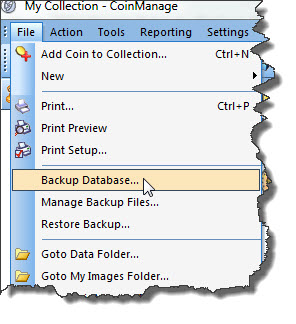
a) Do a backup (File > Backup Database..)
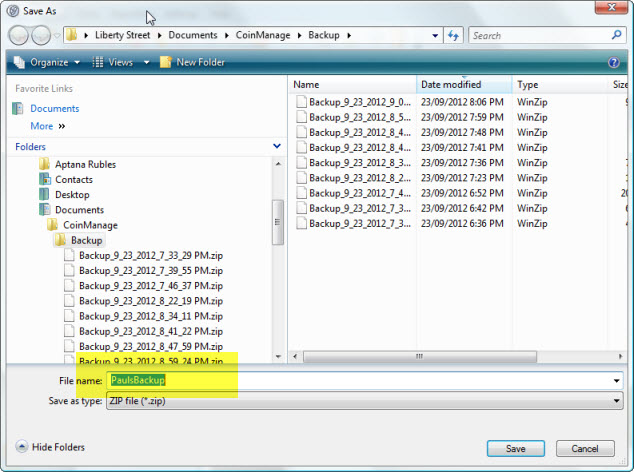
b) In the Backup Save As dialog, you can change the name of the backup file or accept the default name
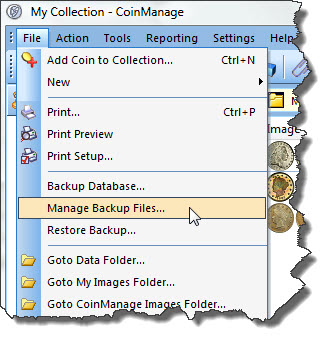
c) then select (File > Manage Backup Files) from the main menu.
d) Take the most recent Zip file and transfer it to your new machine. You can do this by copying the ZIP file to a USB or external drive..or
perhaps copying it to a shared folder on your network that the new machine has access to.
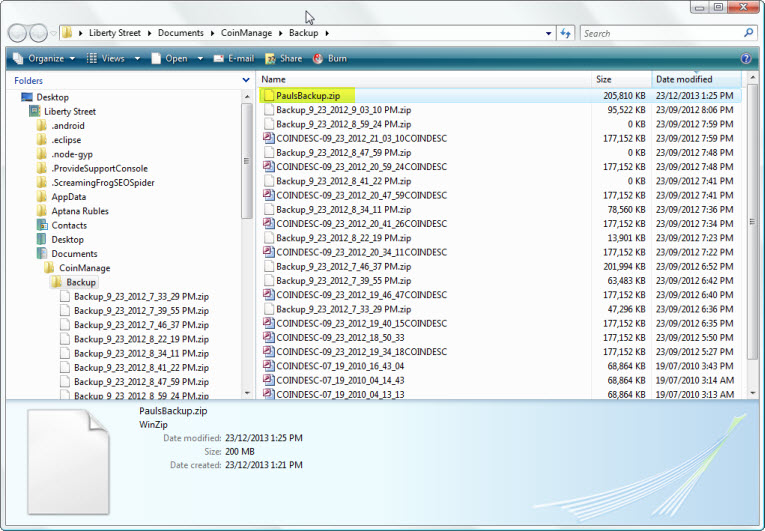
e) Install and run CoinManage on your new machine.
f) Select (File > Restore..) from the main menu.
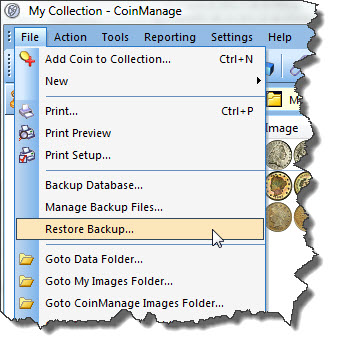
g) Select the ZIP file you backed up in the previous step and press the Open button.
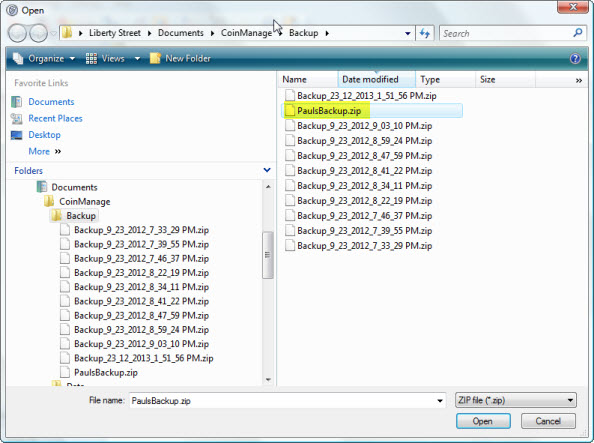
If you don't have a backup ZIP file, only the COINDESC.MDB file from the old computer.
Copy the COINDESC.MDB file from the old machine to overwrite the file on the new machine. The folder location can be found by running the program and select ( File > Go to Data Folder ). On older versions of CoinManage without this command, you can see the Data Folder location in the program Preferences ( Tools > Preferences ).
Copy the COINDESC.MDB file from the data folder on your old machine to the CoinManage data folder on your new machine, replacing the COINDESC.MDB file you will see there.
If you have been attaching your own images to coin records, copy all the JPG files in the CoinImages subdirectory on your old machine to the same CoinManage folder on your new machine. The user images folder can be found by running CoinManage and select (File > Go to Images Folder) or see the Images folder setting in the program Preferences (Tools > Preferences).
In all cases you should install the program on the new machine.
Do not simply copy all the program files over. The setup program must be run.
If the version of CoinManage you are using does backups to ZIP files
a) Do a backup (File > Backup Database..)
b) In the Backup Save As dialog, you can change the name of the backup file or accept the default name
c) then select (File > Manage Backup Files) from the main menu.
d) Take the most recent Zip file and transfer it to your new machine. You can do this by copying the ZIP file to a USB or external drive..or
perhaps copying it to a shared folder on your network that the new machine has access to.
e) Install and run CoinManage on your new machine.
f) Select (File > Restore..) from the main menu.
g) Select the ZIP file you backed up in the previous step and press the Open button.
If you don't have a backup ZIP file, only the COINDESC.MDB file from the old computer.
Copy the COINDESC.MDB file from the old machine to overwrite the file on the new machine. The folder location can be found by running the program and select ( File > Go to Data Folder ). On older versions of CoinManage without this command, you can see the Data Folder location in the program Preferences ( Tools > Preferences ).
Copy the COINDESC.MDB file from the data folder on your old machine to the CoinManage data folder on your new machine, replacing the COINDESC.MDB file you will see there.
If you have been attaching your own images to coin records, copy all the JPG files in the CoinImages subdirectory on your old machine to the same CoinManage folder on your new machine. The user images folder can be found by running CoinManage and select (File > Go to Images Folder) or see the Images folder setting in the program Preferences (Tools > Preferences).
I am getting a new computer.. should I deactivate my licence on old computer? and at what point would I deactivate the liscence? I understand I can move coin manage and use the same licence I am currenty using.
Before deactivating, we recommend you do an Internet Backup:
TOOLS -> BACKUP DATA TO INTERNET
Then install the program on the new computer. You should be able to restore the data on the new computer by selecting:
TOOLS -> RESTORE DATA FROM INTERNET BACKUP
Once this is done you can deactivate the activation code on the old computer using:
TOOLS -> LICENSING -> DEACTIVATE LICENSE
TOOLS -> BACKUP DATA TO INTERNET
Then install the program on the new computer. You should be able to restore the data on the new computer by selecting:
TOOLS -> RESTORE DATA FROM INTERNET BACKUP
Once this is done you can deactivate the activation code on the old computer using:
TOOLS -> LICENSING -> DEACTIVATE LICENSE
When I highlight a coin type my existing inventory does not appear for the selected type.
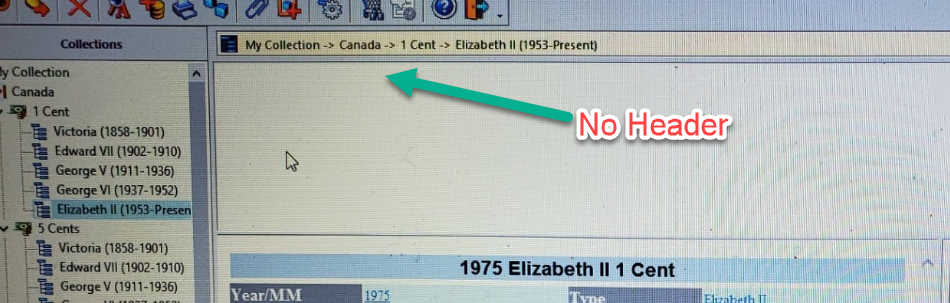
Search your hard drive for a file called HEADERS.WCD. When found, simply delete it.
This file is usually in the MY DOCUMENTS/CoinManage folder
Make sure the program is closed when you do this. Then re-start and see if the problem is fixed.
This file is usually in the MY DOCUMENTS/CoinManage folder
Make sure the program is closed when you do this. Then re-start and see if the problem is fixed.
After I followed the instructions on updating Coin Management 2023, I went to go in and it says that my computer can not locate this program. What can be done to fix this?
Is it possible your anti-virus has deleted the program due to false positives?
In your \\Program Files (x86)\CoinManage 2023 folder
There should be an application file called CoinManage - (CoinManage.exe)
If it is not there but the other files are there it is possible your anti-virus has removed it.
You can contact your anti-virus provider or do a GOOGLE search to discover how to add CoinManage.exe to your anti-virus permitted programs list.
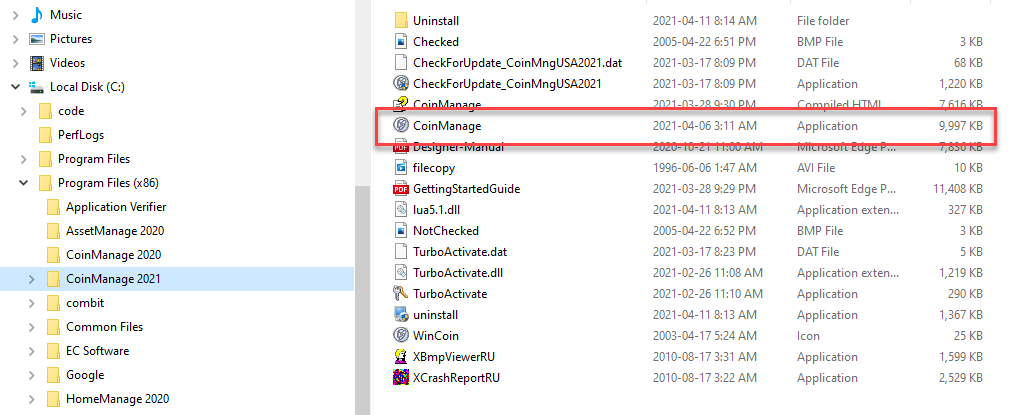
In your \\Program Files (x86)\CoinManage 2023 folder
There should be an application file called CoinManage - (CoinManage.exe)
If it is not there but the other files are there it is possible your anti-virus has removed it.
You can contact your anti-virus provider or do a GOOGLE search to discover how to add CoinManage.exe to your anti-virus permitted programs list.
When I open the "Add Coin" dialog, I do not get a full screen, the right hand side is cut off and I am unable to use it.
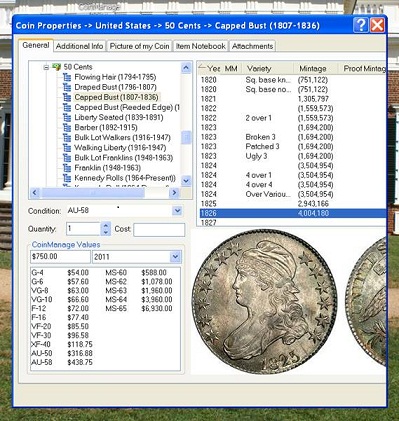
a) Run a program called regedit.exe
Start > Run... > regedit.exe
Note: for Windows 7, 10 and 11, just type regedit.exe into the blank search box you will see when selecting the Windows button at the lower left corrner of your screen.
b) Go to the section
HKEY_CURRENT_USER\Software\Liberty Street Software\CoinManage 20xx
Note: xx refers to the version of CoinManage you are using.
c) Delete the section:
AddCoinDlg
Make sure the program is closed when you do this. Then re-start and see if the problem is fixed.
Start > Run... > regedit.exe
Note: for Windows 7, 10 and 11, just type regedit.exe into the blank search box you will see when selecting the Windows button at the lower left corrner of your screen.
b) Go to the section
HKEY_CURRENT_USER\Software\Liberty Street Software\CoinManage 20xx
Note: xx refers to the version of CoinManage you are using.
c) Delete the section:
AddCoinDlg
Make sure the program is closed when you do this. Then re-start and see if the problem is fixed.
CoinManage crashes randomly, or when I am using the Add Coin dialog.
Delete the HEADERS.WCD file. You can search for this file on your computer. If you can't find the file it may be because it is stored in
a folder that Windows hides by default. To be able to see the hidden folders, please see item #5 above for links
that explain how to show hidden folders. Once this is done, search for the HEADERS.WCD file and delete it when you find it.
I have a previous version of CoinManage on my computer, how do I purchase and install an upgrade.
See the CoinManage Upgrades information page for instructions on upgrading to the most recent version.
Can you please let me know if it is possible to import a catalog of coins into Coinmanage? Not an actual coin collection, but rather a catalog of Russian coins I have
in Excel (or CSV) format.
The program does not currently have an import feature. We looked at this a few years ago. The problem was there would be too many errors trying to map varieties from the import database to ours.
I have attempted, several times to find a way to open my new 2015 CoinManage software on my 'Windows 8' computer
after updating from my 2007 version to the latest software. The error message reads: 'The Microsoft Jet
database engine cannot open the file: C:\Program Files (x86)\Coin Manage\Data\COINDESC.MDB.
It is already opened exclusively by another user, or you need permission to view its data.'
This error usually occurs when the CoinManage data file is in a folder underneath the Windows "Program Files" folder.
Recent versions of Microsoft Windows automatically set this folder to "read only". It is strongly advised by
Microsoft to not place data files under this folder.
a) To fix this problem: Run the Windows regedit program.
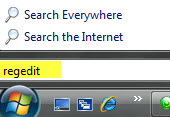
b) Drill down to the HKEY_CURRENT_USER\Software\Liberty Street Software\CoinManage section.
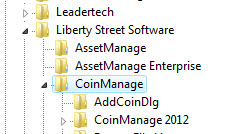
c) Change the Data Directory setting to a folder where you will have complete read/write access.
For example {username}\Documents\CoinManage\Data"

d) After this is done, you must Copy the COINDESC.MDB file from the old folder (shown in the error message) to the new folder specified in the DataDirectory setting.
e) Run CoinManage again, if you get an error about not being able to find the COINDESC.MDB file, you should be able to navigate to the new folder. If not, return to regedit and make sure the DataDirectory setting is correct and that there is a folder with that name on your system.
a) To fix this problem: Run the Windows regedit program.
b) Drill down to the HKEY_CURRENT_USER\Software\Liberty Street Software\CoinManage section.
c) Change the Data Directory setting to a folder where you will have complete read/write access.
For example {username}\Documents\CoinManage\Data"
d) After this is done, you must Copy the COINDESC.MDB file from the old folder (shown in the error message) to the new folder specified in the DataDirectory setting.
e) Run CoinManage again, if you get an error about not being able to find the COINDESC.MDB file, you should be able to navigate to the new folder. If not, return to regedit and make sure the DataDirectory setting is correct and that there is a folder with that name on your system.
Copyright© 2024 Liberty Street Software
| Contact
Us
| Privacy Policy